Add a service
Services are what customers pick on your booking page: a haircut, a manicure, a consultation. Each one has a name, a duration and a price.
Create the service
- In the sidebar, open Services.
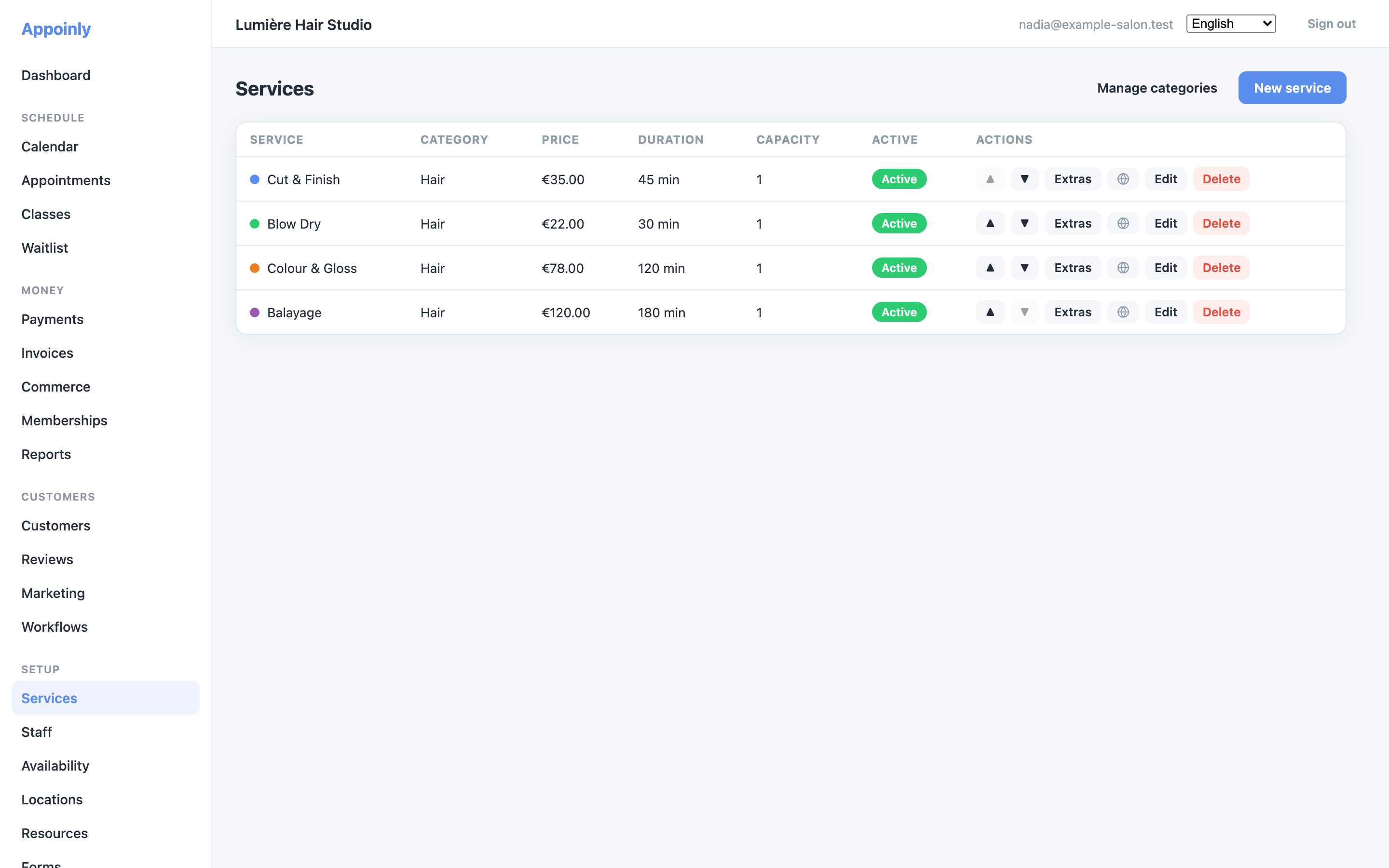
- Click New service.
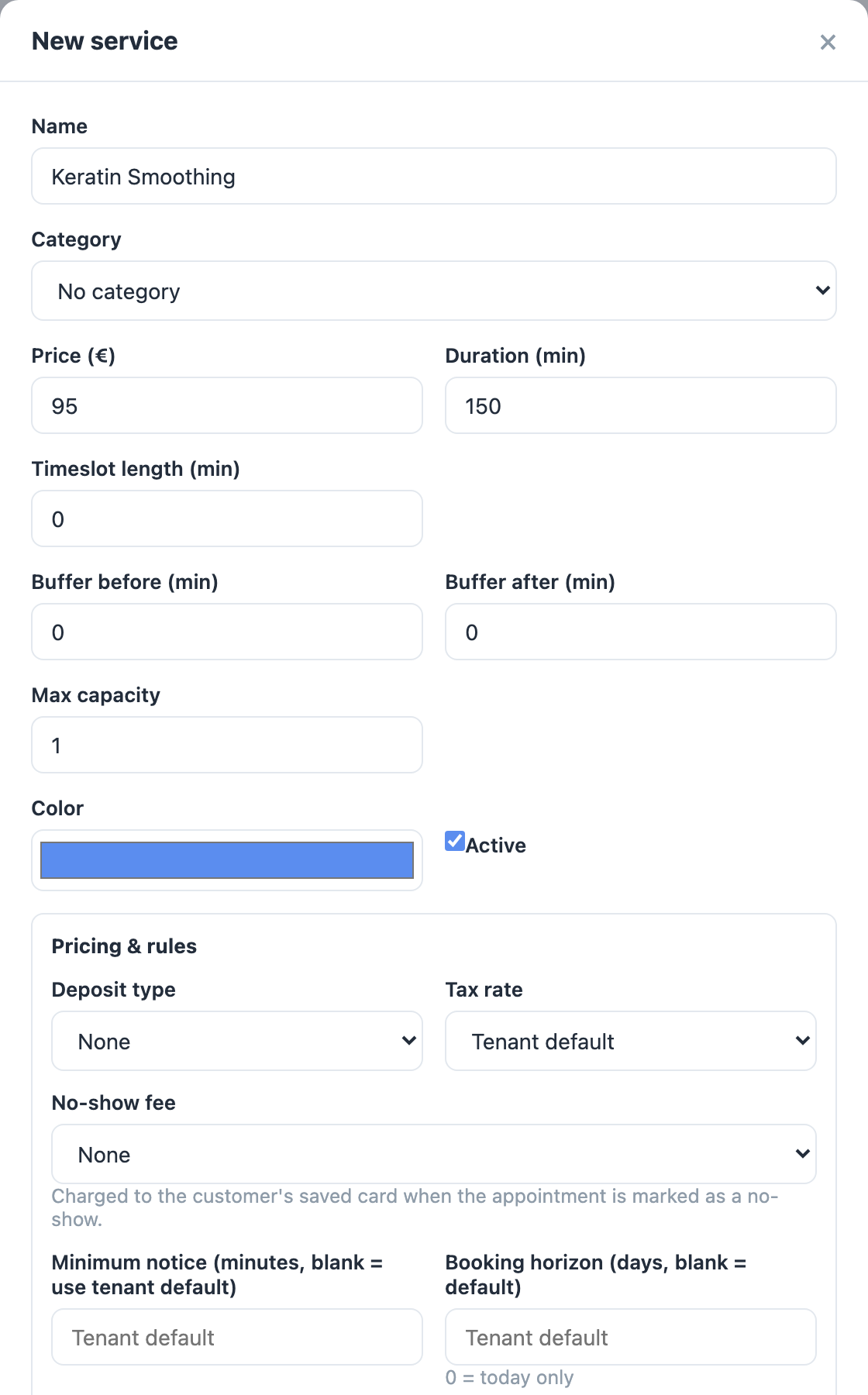
- Give it a Name customers will recognise — for example "Women's haircut".
- Pick a Category if you use them — categories group services on your booking page. You can also create one on the spot, or manage them later with Manage categories.
- Set the Price (€).
- Set the Duration (min) — how long the appointment takes.
- Click Save.
Make sure someone offers it
A service can only be booked if at least one staff member offers it.
- Open Staff in the sidebar.
- Click Edit on a team member.
- In Services (optional price override in €), tick the new service. Type a price next to it only if this person charges differently — leave it empty to use the service's normal price.
- Click Save.
Useful options on the service
- Buffer before (min) and Buffer after (min): preparation or clean-up time around each appointment that customers cannot book over.
- Visible on booking page: untick it to hide a service from customers without deleting it.
- Each service also has a colour, so its appointments are easy to spot on the calendar.