Set up automatic reminders
Reminders cut no-shows. In Appoinly they live on the Workflows page: when an event happens — like "appointment starts in 24 hours" — an action runs, like sending an email. Workflows are visible to owners and admins, not to staff logins.
Create a 24-hour email reminder
- In the sidebar, open Workflows.
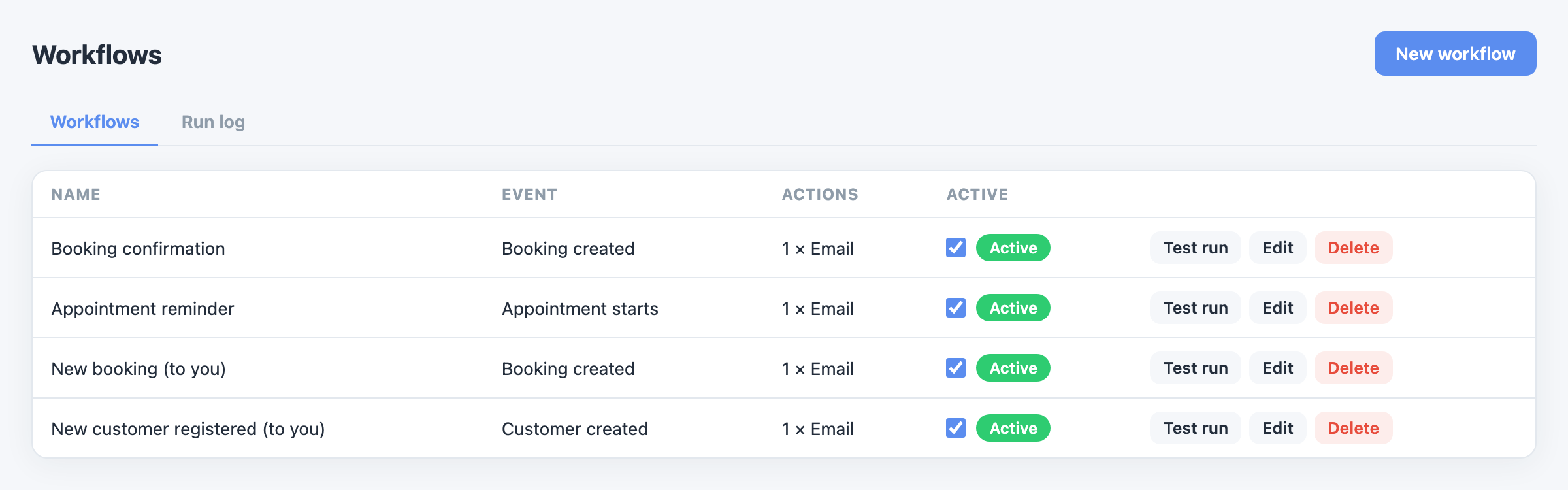
- Click New workflow and give it a Name, for example "24-hour reminder".
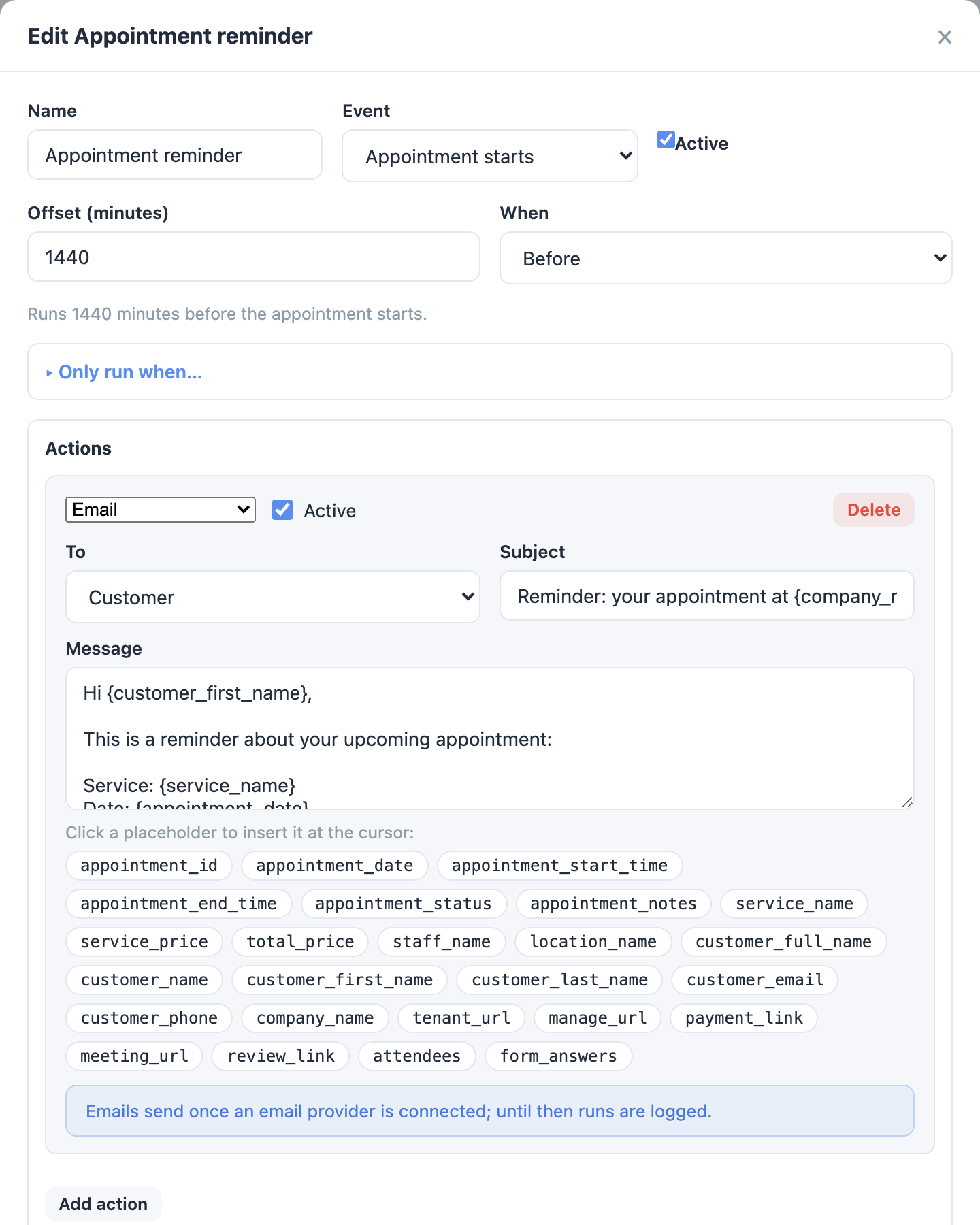
- As the Event, choose Appointment starts.
- Set Offset (minutes) to
1440and pick Before — that is 24 hours before the start. (120would be 2 hours, and so on.) - Under Actions, click Add action and choose Email as the Action type.
- Set To to Customer, then write the Subject and the Message. Click a placeholder above the message to insert things like the customer's name or the appointment time at the cursor.
- Click Save, and check the workflow is marked active in the list.
SMS, WhatsApp and Viber reminders
Message actions send through your own Twilio account, configured once in Settings.
- Open Settings → the Messaging tab (the card is titled Messaging (Twilio)).
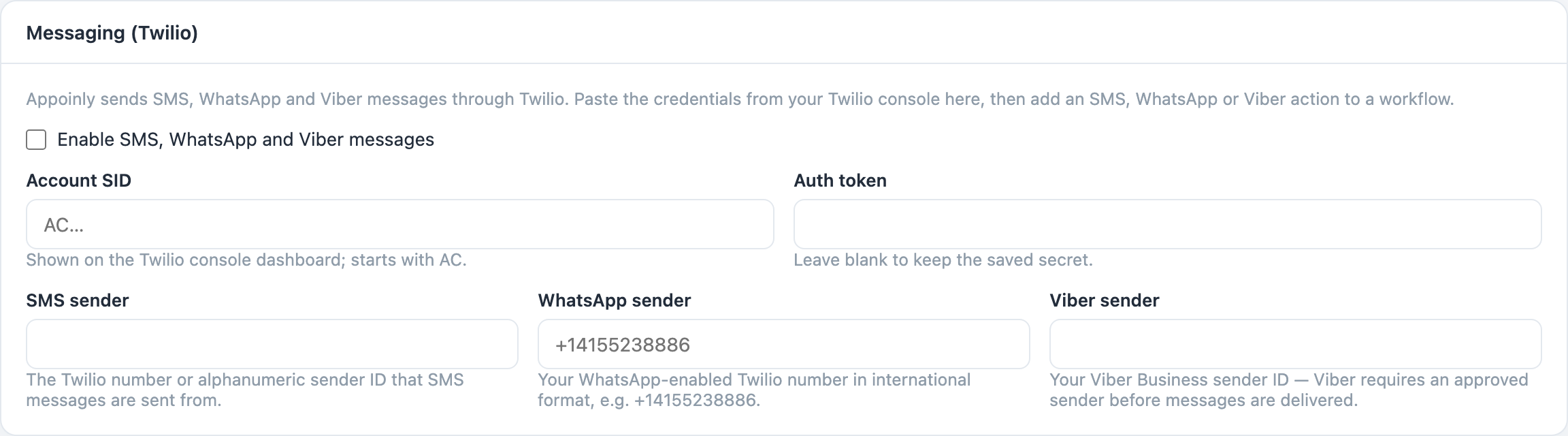
- Tick Enable SMS, WhatsApp and Viber messages.
- Fill in your Twilio Account SID and Auth token, and the sender for each channel you use: SMS sender, WhatsApp sender, Viber sender.
- Click Save settings.
- Back in your workflow, add an action with Action type set to SMS, WhatsApp or Viber.
More ideas
- Booking created → an instant confirmation email to the customer.
- Appointment ends → a follow-up a few hours After, asking for a review.
- Add a second action to the same workflow with To set to Staff member, so your team gets notified too.