Add holidays and days off
The Availability page handles the exceptions to your weekly routine: holidays when no one can book, and special days when the hours are different just once.
Add a holiday (closed all day)
- In the sidebar, open Availability.
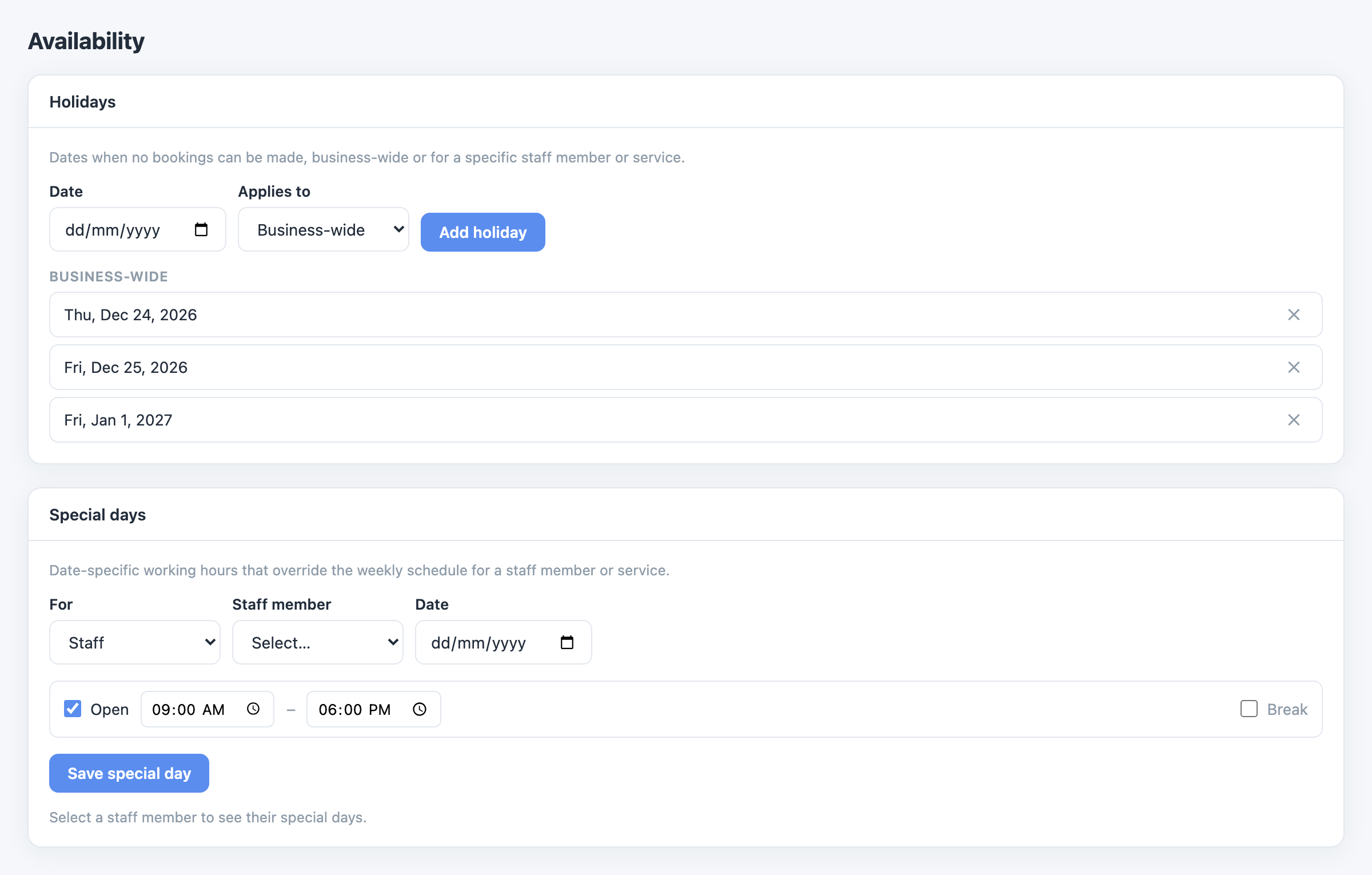
- In the Holidays card, pick the Date.
- In Applies to, choose Business-wide to close the whole business — or Staff / Service to block just one person or one service.
- If you chose Staff or Service, pick who or which from the list that appears.
- Click Add holiday.
Different hours on one date (Special days)
Special days give a staff member or a service different hours on one specific date — working until 14:00 on Christmas Eve, or opening one Sunday only.
- In the Special days card, choose For: Staff or Service, then pick the person or service.
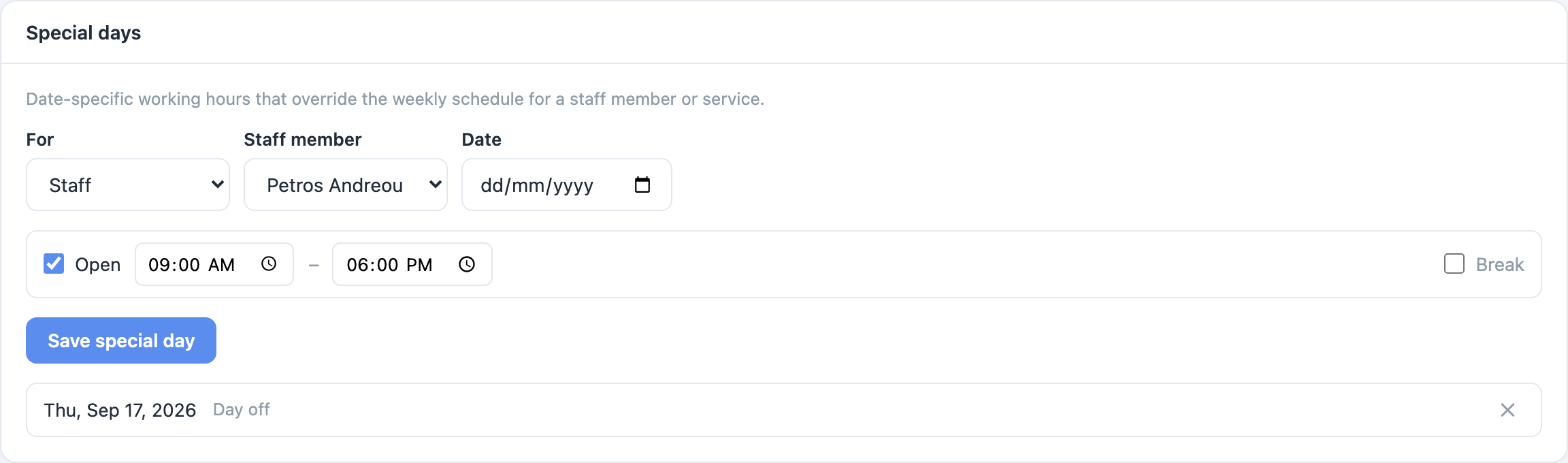
- Pick the Date.
- Set the hours for that date: tick Open and set start and end times, plus a Break if needed. Untick Open to make it a full day off.
- Click Save special day.
Which one wins?
A special day replaces the weekly schedule for that date, exactly as the dashboard describes it. A holiday blocks bookings entirely for whoever it applies to.