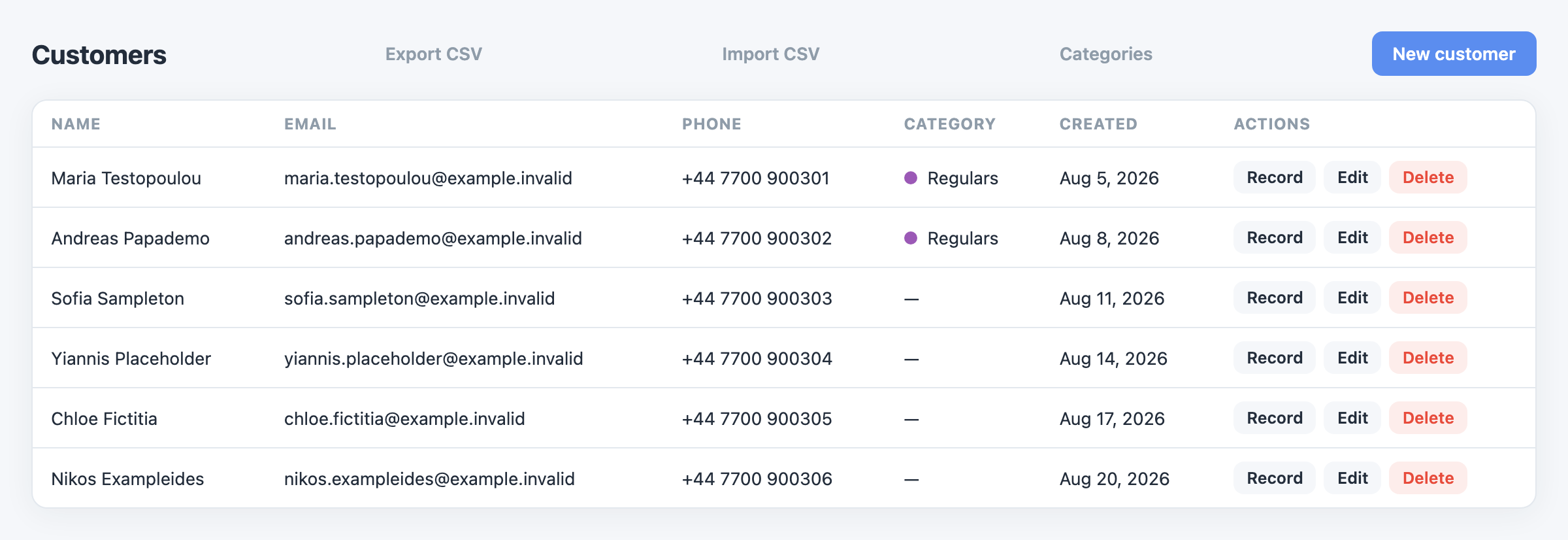
Import your customer list
Moving from a paper book or another system? You can load your whole customer list in one go from a CSV file.
Prepare your file
You need a CSV file. Excel, Google Sheets and Numbers can all save one.
- Put each customer on their own row.
- Use these column headings — the import understands exactly these:
first name,last name,email,phone,birthdate,notes. Only fill in what you have. - Save as CSV: in Excel, File → Save As and pick CSV; in Google Sheets, File → Download → Comma-separated values (.csv).
Import it
- In the sidebar, open Customers.
- Click Import CSV.
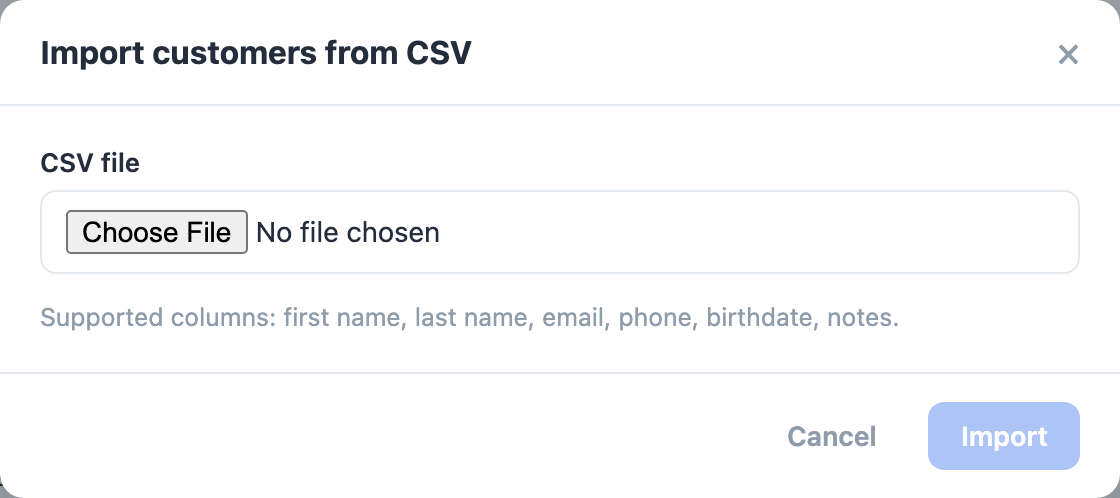
- Under CSV file, choose the file you saved.
- Click Import.
- When it finishes you'll see how many customers were added, updated and skipped — and if any rows had problems, they are listed so you can fix them and import again.
Handy extras on the Customers page
- Export CSV downloads your list — good as a backup before big changes.
- New customer adds one person by hand.
- Categories lets you group customers (for example "VIP", "Colour clients") with a colour for each group.