Manage your appointments
Bookings show up in two places: the Calendar for the day-to-day view, and the Appointments list for finding a booking and changing it.
See your day on the Calendar
- In the sidebar, open Calendar.
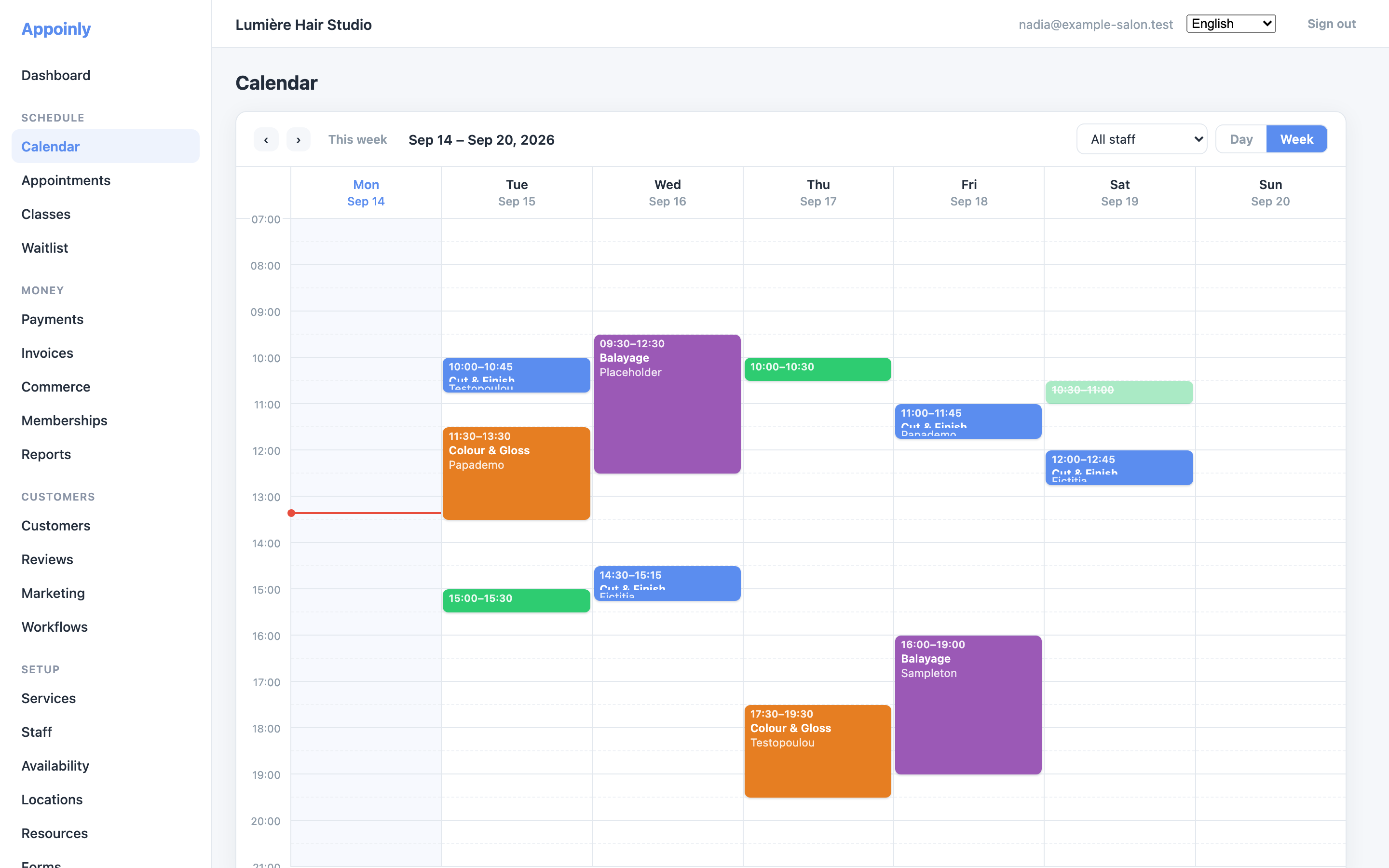
- Switch between Day and Week; Today jumps back to the current date.
- Use Filter by staff to show one person at a time.
- Click an appointment to see the customer, service and total. From there, Open in appointments takes you to the full record.
Approve, cancel or mark a no-show
- Open Appointments.
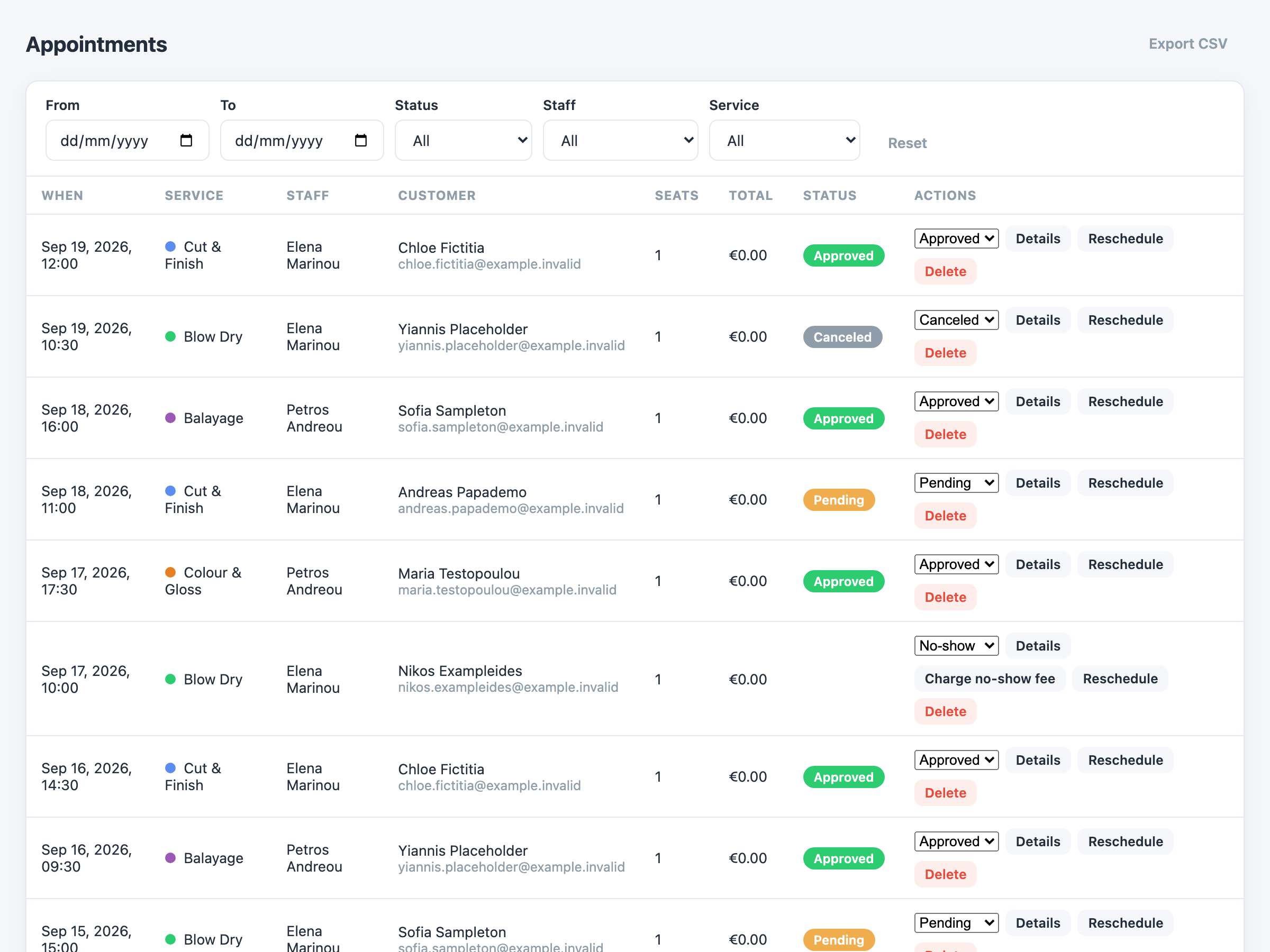
- Find the booking — filter by date (From / To), service, staff member or status.
- In its row, change the status dropdown: Pending, Approved, Canceled, Rejected or No-show.
- To cancel a booking, set it to Canceled — the time becomes free for other customers again.
Reschedule
- Click Reschedule in the appointment's row.
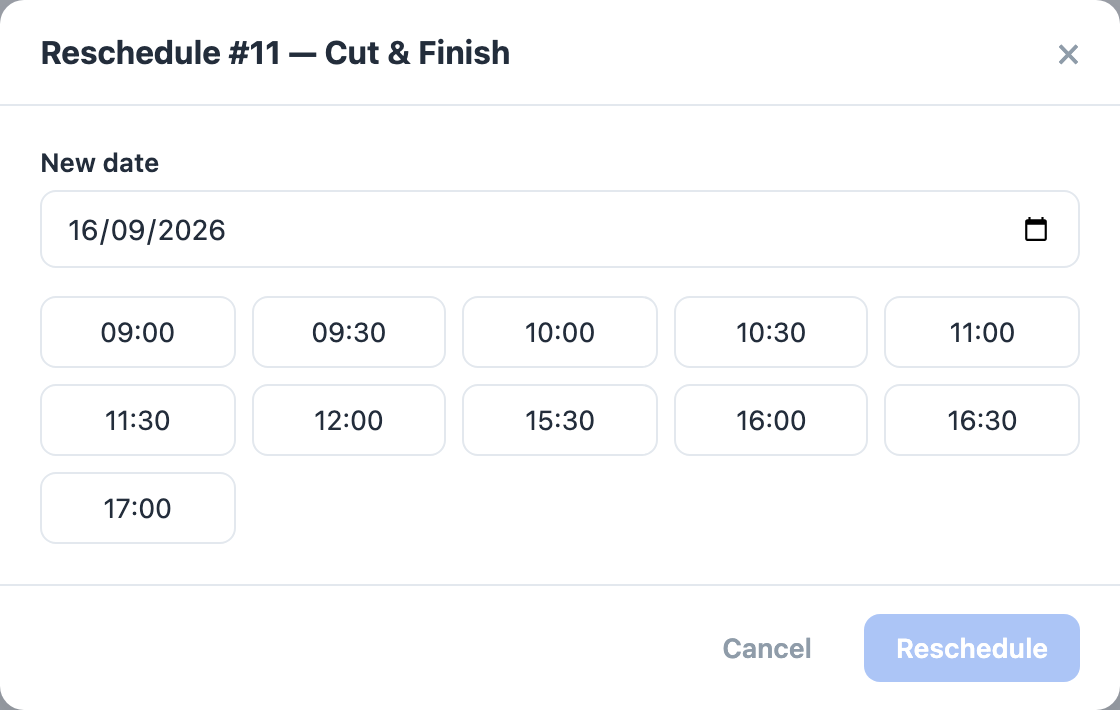
- Pick the New date.
- Free times for that day load automatically — pick one and save. If the day shows "No free slots", try another date.
More from the row
- Details shows the full record: customer contact details, notes, and the price breakdown.
- Copy payment link (in Details) gives you a link the customer can open to pay online — useful for unpaid bookings once you have set up online payments.
- Export CSV downloads the filtered list, for example for your accountant.