Take payments online
Appoinly can take payment on the booking page. It supports Stripe, PayPal and Viva.com — set up whichever you have an account with. You'll need the account's keys, which each provider shows in its own dashboard.
Turn payments on
- In the sidebar, open Settings and go to the Payments tab.
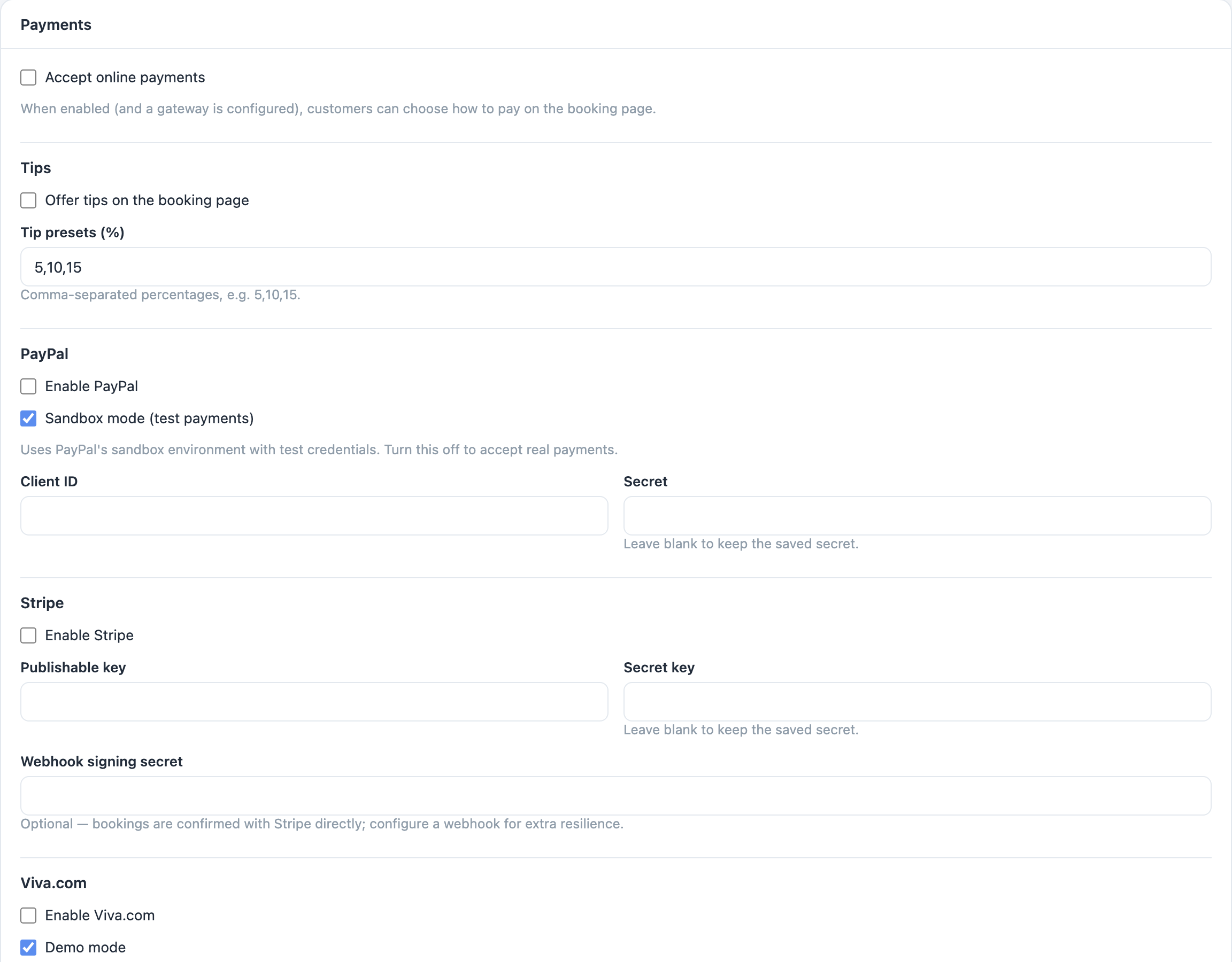
- Tick Accept online payments. As the page explains, customers can choose how to pay once a gateway below is configured.
- Set up at least one provider (next sections), then click Save settings.
Stripe
- Tick Enable Stripe.
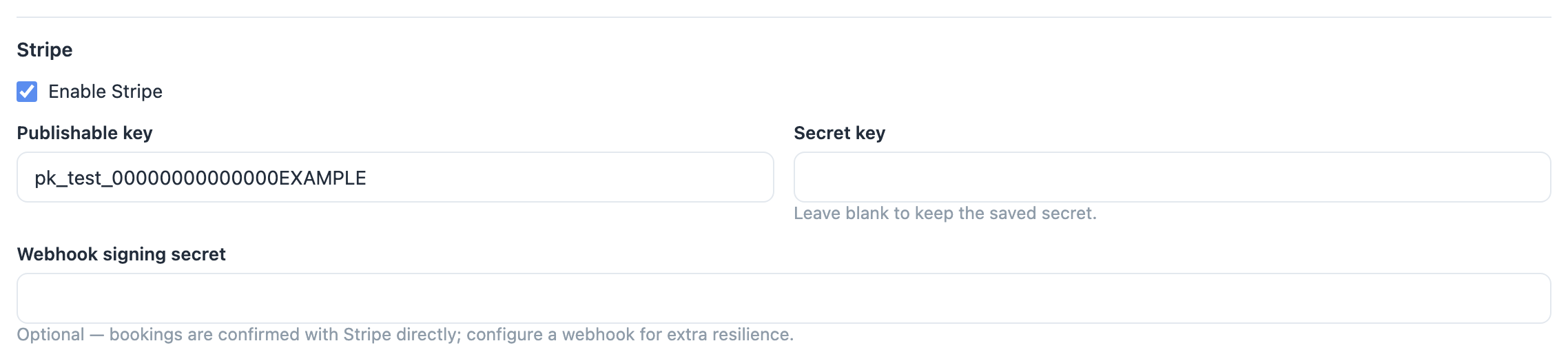
A saved secret shows as •••••• (saved) — leave it blank to keep it. - In your Stripe dashboard (
dashboard.stripe.com→ Developers → API keys), copy the publishable and secret keys. - Paste them into Publishable key and Secret key.
- Webhook signing secret is optional — the page notes bookings are confirmed with Stripe directly, and a webhook just adds extra resilience.
PayPal
- Tick Enable PayPal.
- From your PayPal developer account (
developer.paypal.com), copy the app's credentials into Client ID and Secret. - Use Sandbox mode (test payments) while trying it out — untick it to take real payments.
Viva.com
Viva is a popular choice in Cyprus and Greece. It needs two sets of credentials, both from your Viva account.
- Tick Enable Viva.com.
- From your Smart Checkout credentials, fill in Client ID and Client secret.
- From the Viva banking app, fill in Merchant ID and API key.
- Fill in the Payment source code of the payment source you created in Viva.
- Copy the webhook URL shown on the page and add it as a webhook in your Viva banking app — Viva verifies it once, automatically.
- Use Demo mode with demo credentials while testing.
Deposits and tips
- To ask only for a deposit at booking, open the service in Services and set Deposit type (fixed € or percent) under its pricing rules.
- In the same Payments tab, the Tips section lets you tick Offer tips on the booking page.